Tumult Hype Documentation — Audio & Video
Tumult Hype supports the latest HTML5 video and audio standards, and gives you the tools to create rich multimedia documents.
Video
Tumult Hype embeds video using HTML’s native <video> tag, whenever possible. If the browser doesn’t support HTML5 video, as is the case with Internet Explorer 6 through 8, Hype falls back to the QuickTime plug-in.
 Video Sources
 (Resource Library)

Video Sources and Options
(Element Inspector)
Adding Video
Add video elements by choosing Insert > Video…, or by clicking the Insert Elements… toolbar button and choosing Video…. You can also drag-and-drop videos onto the scene, or copy and paste them from other applications. Tumult Hype supports importing files with .mov, .ogg, .ogv, .webm, .mp4, and .m4v extensions, though only .mov, .mp4, and .m4v files can be viewed from within Tumult Hype.
Browser Support
Unfortunately, the current state of HTML5 video is quite fractured. Safari and Internet Explorer support H.264 (.mp4 and .m4v files), while Firefox supports Theora (.ogg and .ogv files), and Chrome supports H.264, Theora, and VP8 (.webm files). Luckily, the video tag supports multiple sources for one element. Adding a single video in Tumult Hype creates a video group to which other formats may be added. To add additional video formats, select your video and click Add Video Source in the Resource Library, or select your video and add your source in the Element inspector.
To convert videos into these formats, we recommend using Miro Video Converter. It is simple, effective, and free. Instructions on how to use this software are at diveintohtml5.info/video.html.
Controlling Video
The Element inspector exposes options for the selected video:
- Autoplay — Video will play when it is shown (see compatibility note below).
- Controls — When checked, video controls are shown.
- Loop — Video will loop when complete
- Muted — Audio will not play for the video.
- iOS: Video will not play on iOS devices without user interaction. Thus, videos played ‘On Scene Load’, ‘On Scene Unload’, or using a timeline action will not play back on iPhones, iPads, or iPod touches. Use Mouse Click actions to play video on iOS.
- iBooks Author: Ensure that your video files do not contain spaces or foreign characters in their filenames.
Video FAQs
- Embedding an external video, embedding YouTube Videos, and removing videos when leaving the scene.
- How do I create custom play or pause buttons?
- How do I embed a YouTube or Vimeo video?
- How do I place a video within an iBooks Author widget?
- How do I stop a YouTube or Vimeo video when leaving the scene?
- Why isn't my video playing in Firefox?
Audio
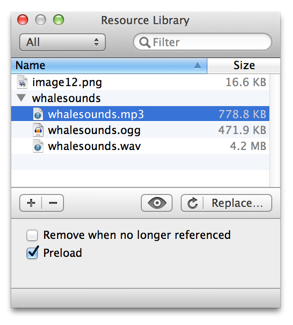
Audio Sources (Resource Manager)

Audio played by a Timeline Action
On the newest browsers, Tumult Hype plays audio using the powerful Web Audio API. On less recent browsers, Hype falls back to the standard <audio> tag. On old browsers like Internet Explorer 6 through 8, Hype relies on the QuickTime plug-in.
Adding Audio
To add audio to your project, first create your file formats. For example, prepare the files: whalesounds.mp3, whalesounds.ogg and whalesounds.wav. Dragging these files into the resource library will create an audio source group called ‘whalesounds’. You can also individually add audio formats by selecting the audio source group and adding missing formats.
The image on the right illustrates an audio group named “whalesounds” in the Resource Library.
Browser Support
For broad browser compatibility, we recommend supplying MP3 and OGG files for each audio group. One audio source group may contain any combination of MP3, OGG, or WAV files. We recommend converting between the various audio formats using Miro Video Converter. For generating other audio formats, we recommend Audacity.
Controlling Audio
Once an audio source group exists in your document, audio can be played or stopped using scene, mouse/touch, or timeline action handlers. The Play Sound… and Stop Sound… actions can be invoked by any action handler, and those actions let you choose from any of your document’s audio groups. When playing audio, the Loop option continuously plays the chosen audio group in a loop. Likewise, the Preload option controls whether the audio group’s files should be downloaded before your Hype animation begins playing. For a list of all available actions, see the Actions chapter. Below are a few examples of how actions can control audio playback:
- Start audio when a scene begins by adding an On Scene Load action handler and then choosing the Play Sound… action.
- Start audio after clicking or tapping an element by adding an On Mouse Click (Tap) action handler to the element, and then choosing the Play Sound… action.
- Start audio three seconds after the beginning of a timeline by adding timeline action to the timeline, and have the timeline action invoke Play Sound….
- Stop audio when exiting a scene by adding an On Scene Unload action handler and then choosing the Stop Sound… action.
If you are interested in controlling audio with JavaScript, or referencing audio files hosted externally, please read Playing and Controlling Audio with JavaScript.
- iOS: Audio will not play on iOS devices without user interaction. Thus, audio played ‘On Scene Load’, ‘On Scene Unload’, or using a timeline action will not play back on iPhones, iPads, or iPod touches. Use Mouse Click actions to play audio on iOS.
- iBooks Author: Ensure that your audio files do not contain spaces or foreign characters in their filenames.
External Audio & Video (YouTube, Vimeo, SoundCloud)
To embed external media such as a YouTube video or SoundCloud player, use an HTML widget. Select Insert > HTML Widget, and select the Element inspector. In the HTML Widget area, click Edit Code Snippet… and paste your embed code in the Inner HTML area. For more information about embedding videos, read our YouTube & Vimeo knowledge base article.
Deleting Media
Audio and video added to your Tumult Hype document appears in the Resource Library. To delete media, select it, and click the Minus button.
Additional questions?
If you have any additional questions not covered here, please ask us a question.